

Not rated yet
Creators and Publishers

MinecraftStorage
PublisherAdditional Links
You may find some useful information by following these links

https://modrinth.com/mod/panoptic
Share this post


Panoptic Mod
A collection of various features that makes debugging easier, while also introducing quality-of-life features. Suitable for players, developers and creators alike!
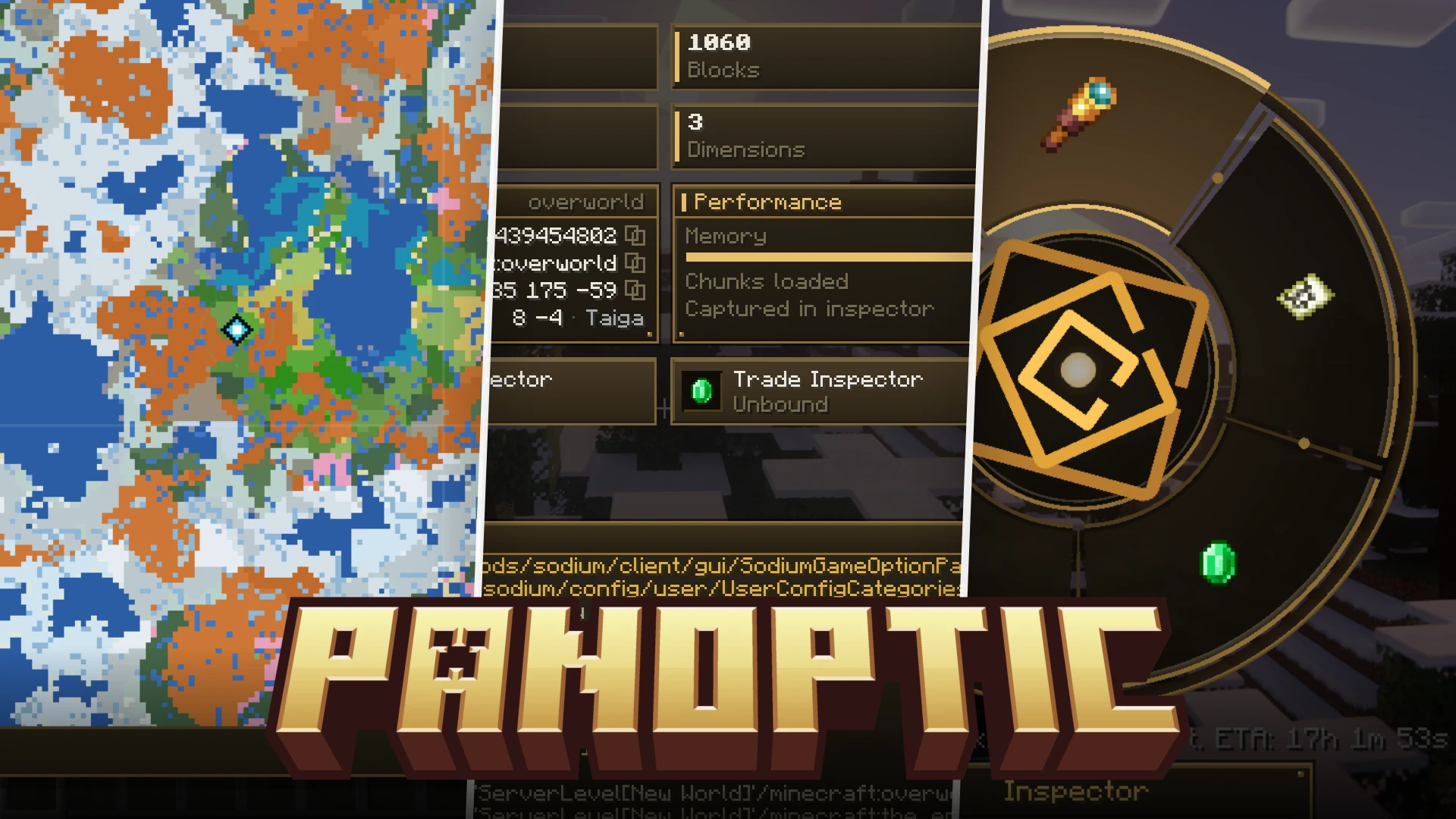

Panoptic can feel overwhelming for players installing it for the first time. This guide explores most of the notable features of this mod in details.
Main Interface
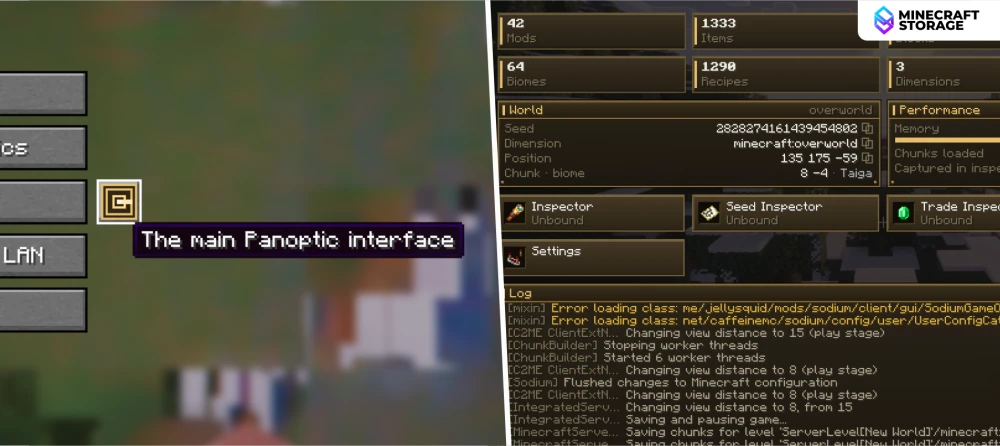
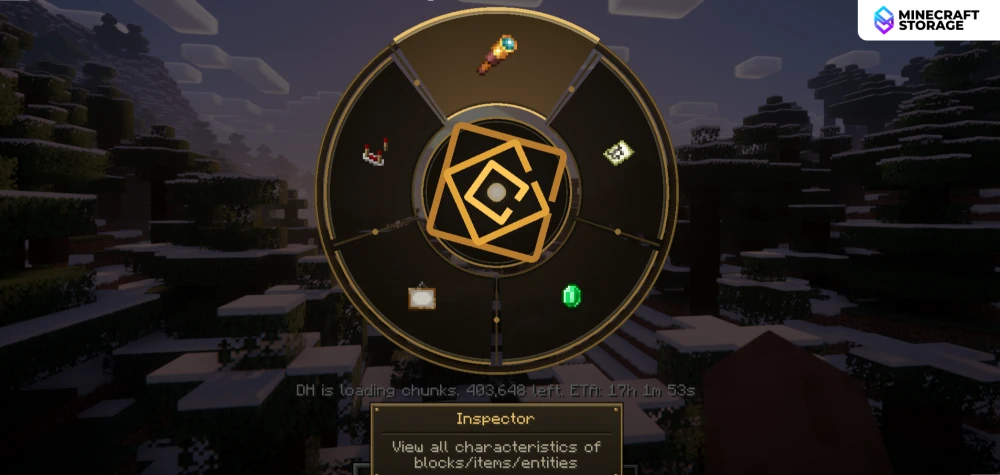
Access Panoptic's main interface from the pause menu or by holding the radial menu key (~) by default. Here you can view instance stats like mod count, items, biomes, and dimensions, plus a live latest.log viewer, with quick-launch buttons for the Inspector, Seed Inspector, and Trade Inspector.
Inspector Toolkit
File Manager
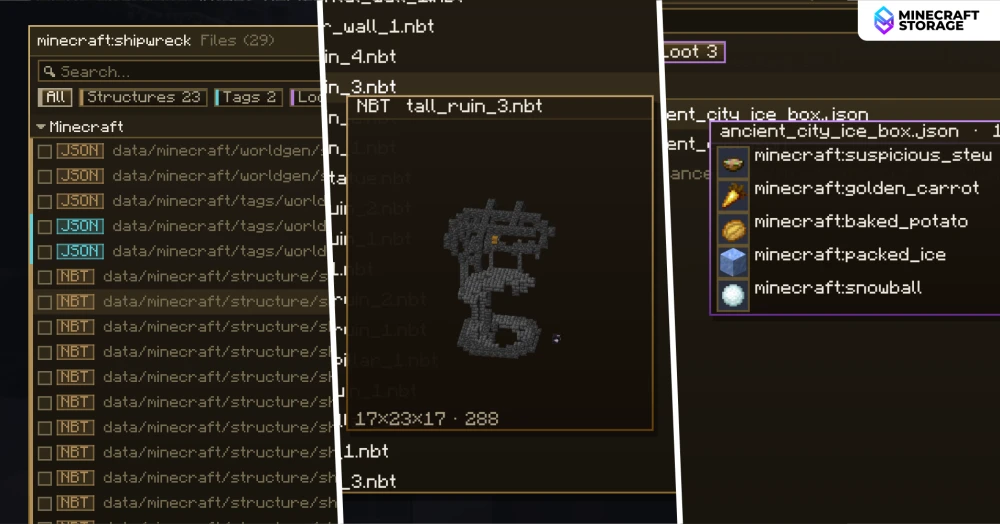
The built-in File Manager lets you browse structure files like shipwrecks directly in-game. You can preview NBT structure models in 3D and inspect loot table contents, such as the items inside an ancient city ice box, without leaving Minecraft.
Object Inspector Search
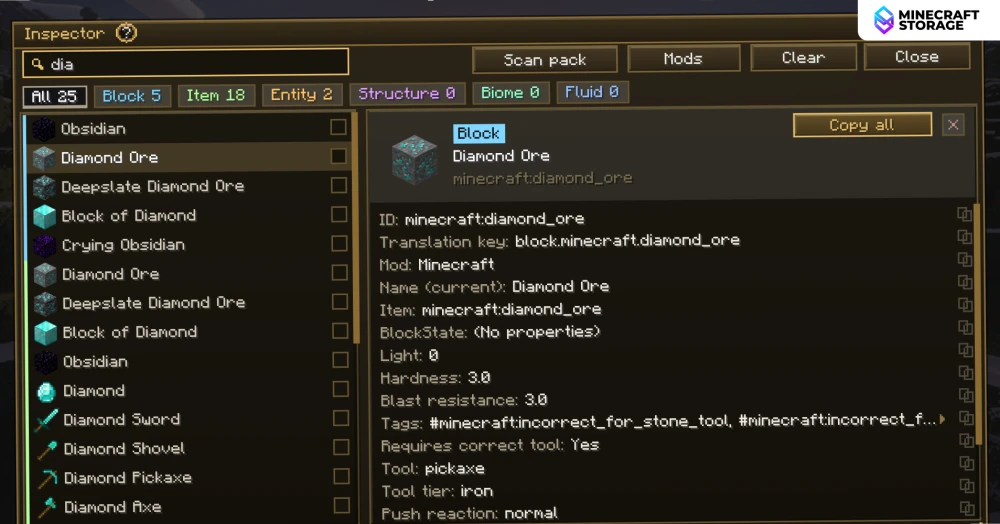
Use the Object Inspector's search bar to quickly find any block, item, or entity, like Diamond Ore in this example. The detail panel on the right displays full technical data including ID, hardness, blast resistance, tags, and required tool tier.
Seed Inspector Toolkit
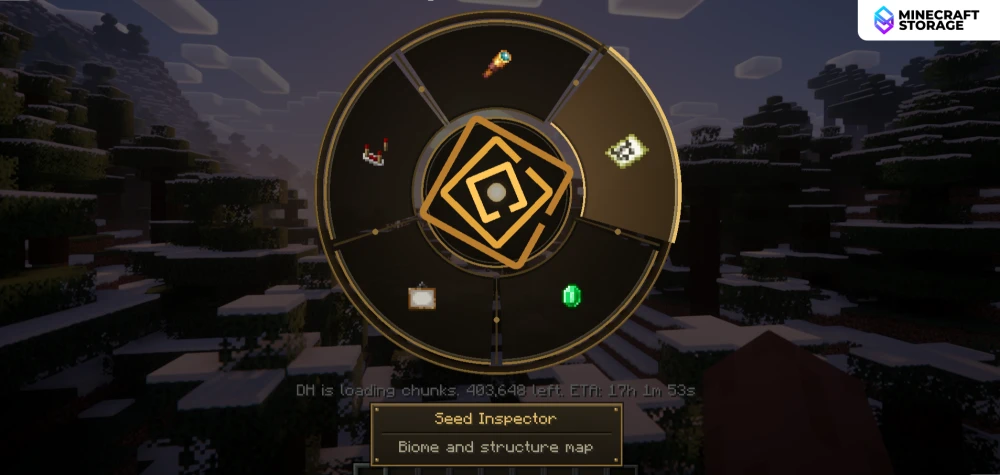
Seed Inspector World Map
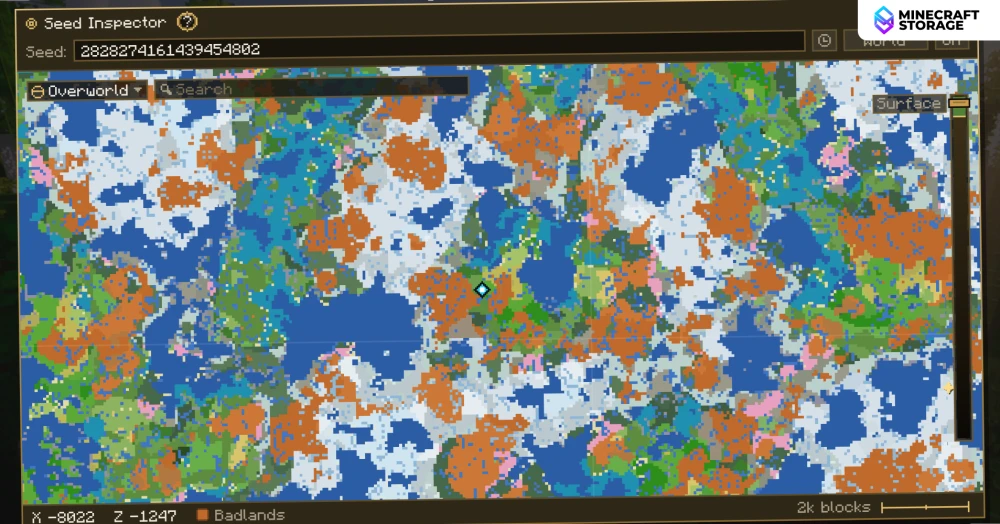
The Seed Inspector generates a full, color-coded biome map for any seed you enter. Use the search bar to locate specific structures or biomes, and the coordinates update live as you explore the map.
Map Position Labels
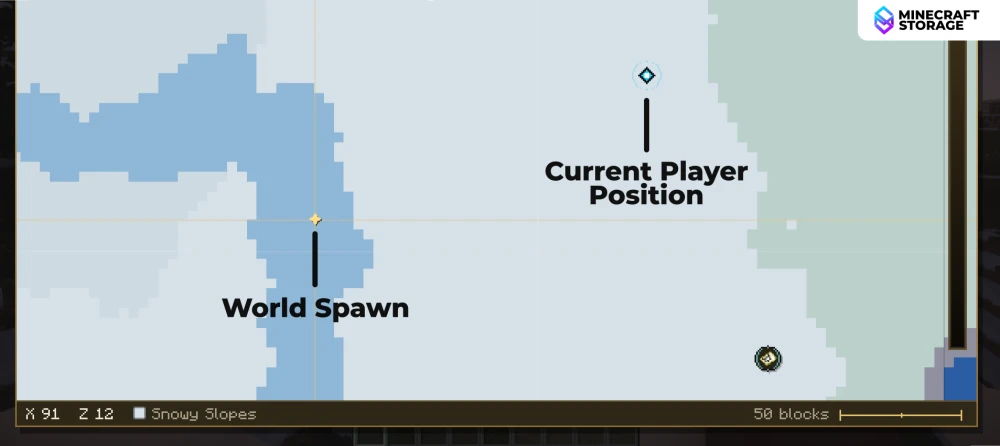
Zoom into any section of the map to compare key reference points, such as World Spawn versus your Current Player Position. This makes it easy to plan routes or measure distances at a glance.
Structure Location Example
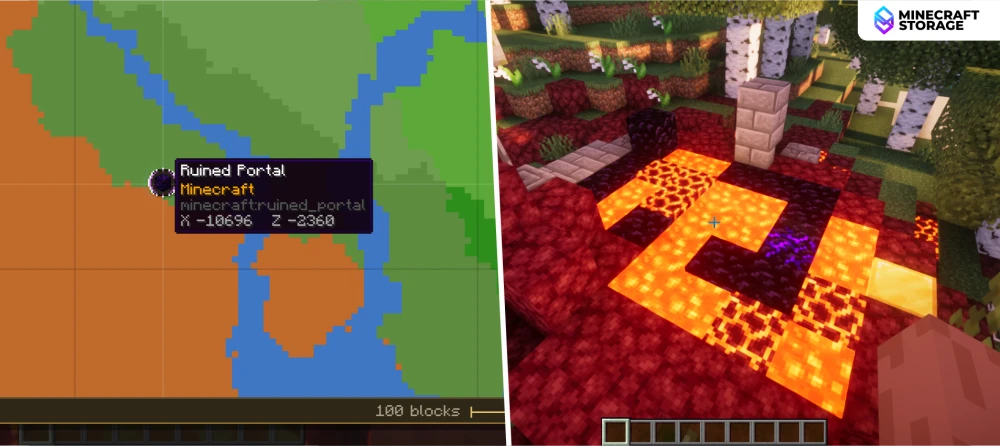
Hover over any structure marker on the map, like this Ruined Portal, to see its exact coordinates. Click to teleport to that location. The in-game screenshot alongside confirms what the structure actually looks like once you arrive.
Structure Data Panel
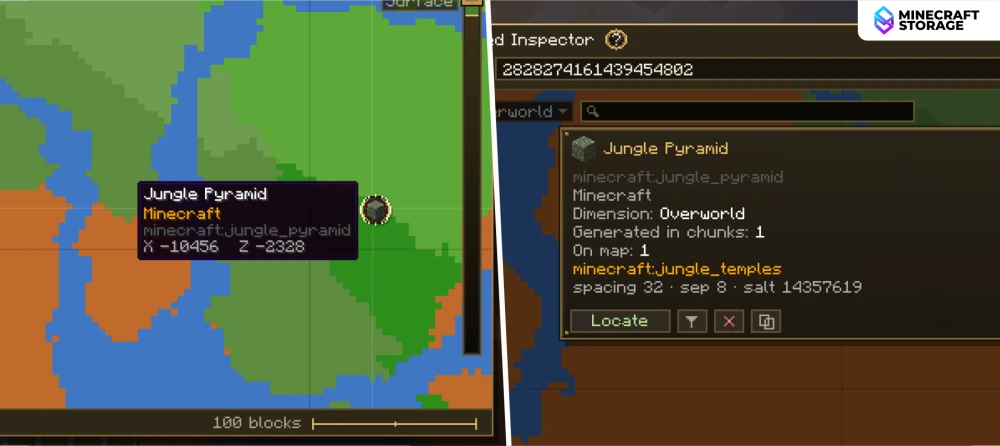
Selecting a structure such as a Jungle Pyramid opens a detailed panel with generation info, including spacing, salt values, and chunk placement. This helps advanced users understand exactly how and where structures spawn.
Trade Inspector Toolkit
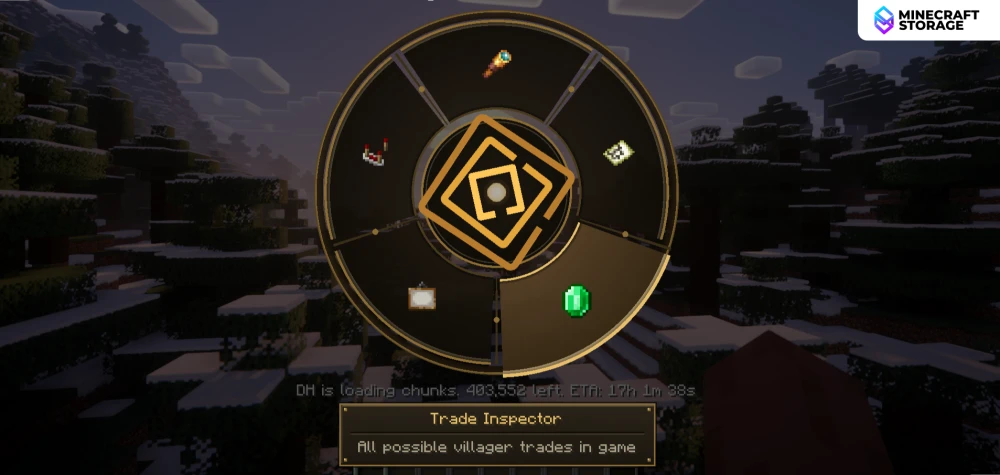
Select any villager profession, like Cartographer, to see every possible trade organized by level, from Novice to Expert. Each trade lists its XP reward and number of uses.
Spawn Villager Feature
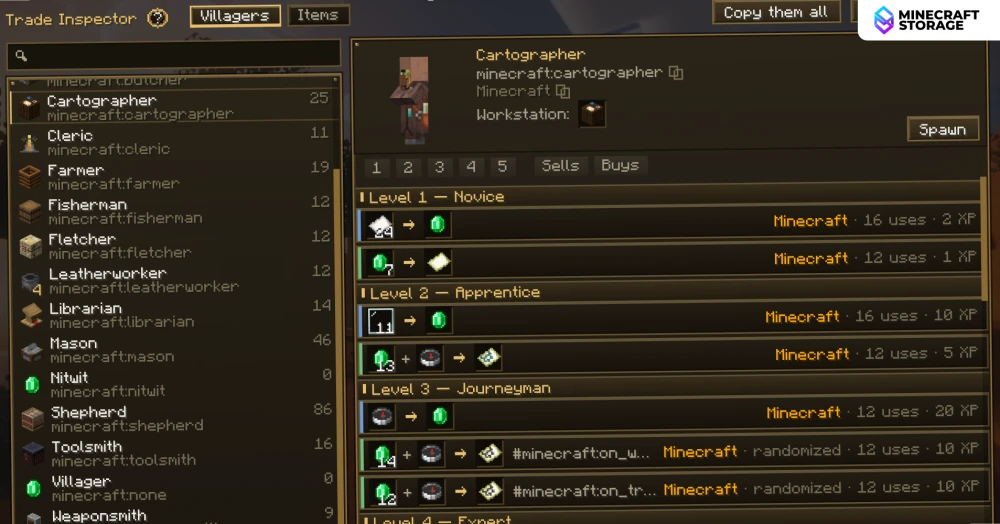
Use the "Spawn" button to instantly spawn a fully-unlocked villager of your chosen profession. This is useful for testing trades without grinding villager levels manually.
Screen Inspector Toolkit
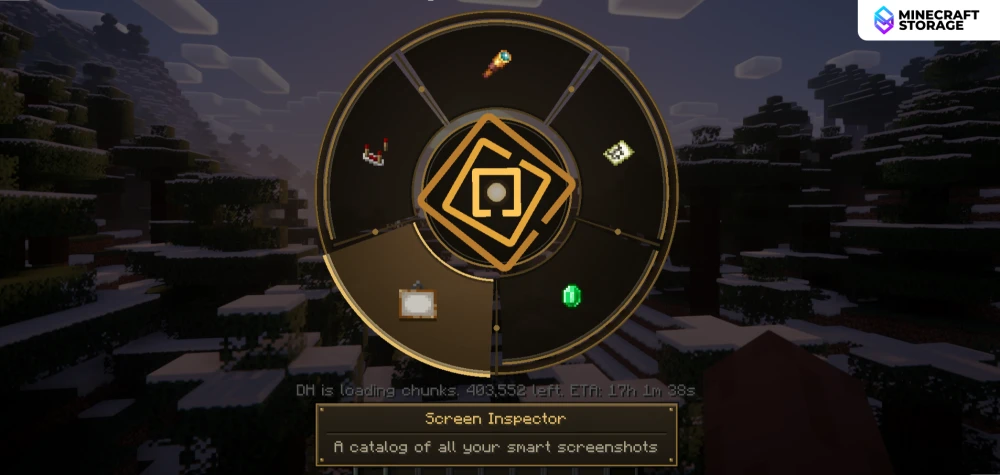
This toolkit contains features that lets you take screenshots and use them in an interactive manner.
Item Identification & Capture
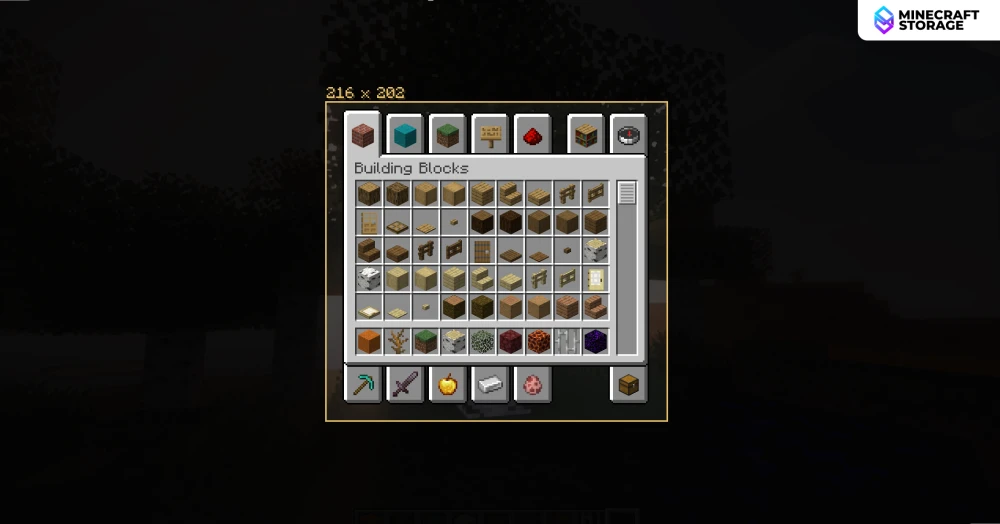
Activate the Screen Inspector over any inventory screen to capture its exact pixel dimensions, shown here as 216 x 202. This is the first step before marking or annotating items within that screen.
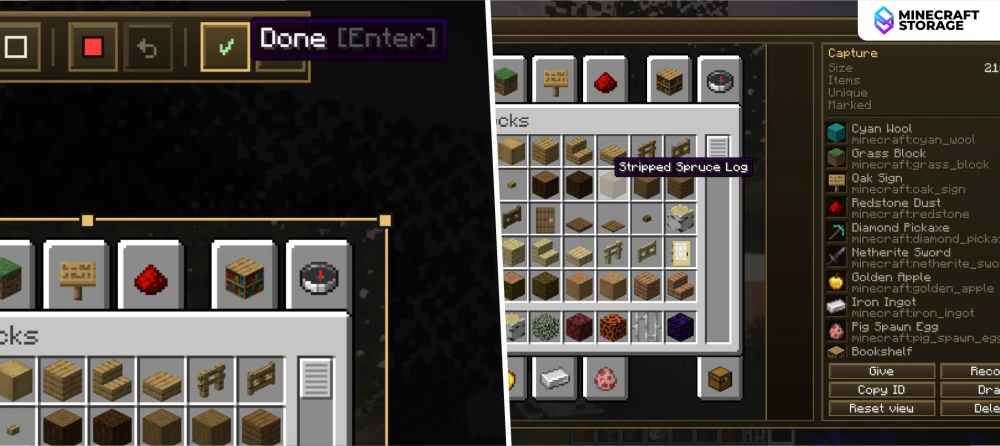
Hover over any item in a captured screen to see its exact name, like "Stripped Spruce Log." The side panel logs every unique item detected in the capture, including rare items like a Netherite Sword.
Marking & Giving Items
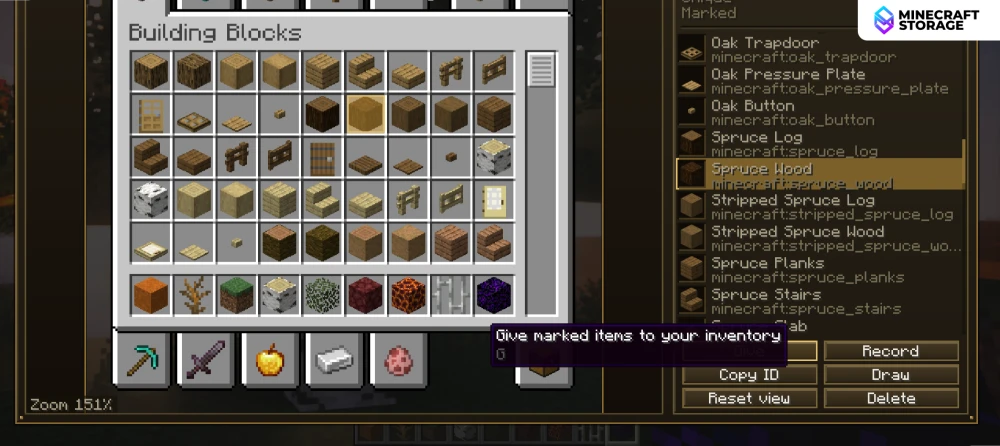
Mark specific items in a captured inventory, such as Spruce Wood, and use the "Give marked items to your inventory" button. This lets you instantly obtain items you've identified through inspection.
Freehand Drawing Tool
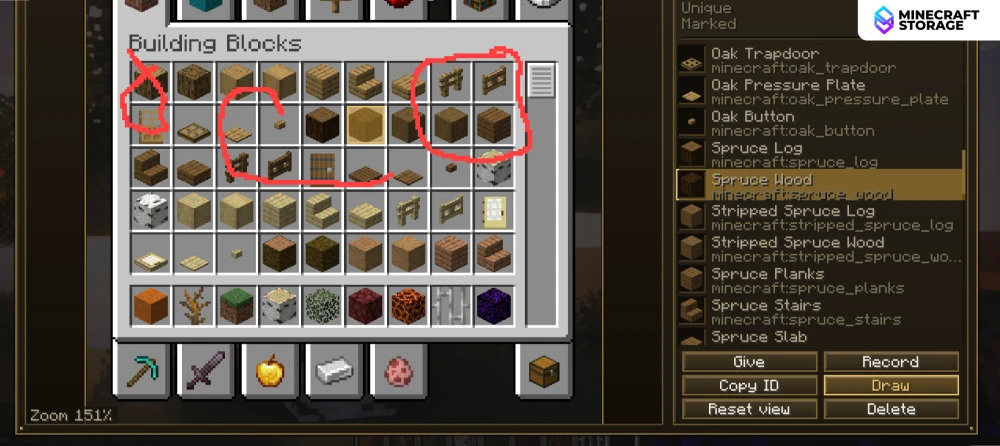
Use the Draw tool to annotate captured screens with freehand marks, circling or crossing out specific items. This is handy for tutorials, guides, or flagging items for later reference.
Screenshot History
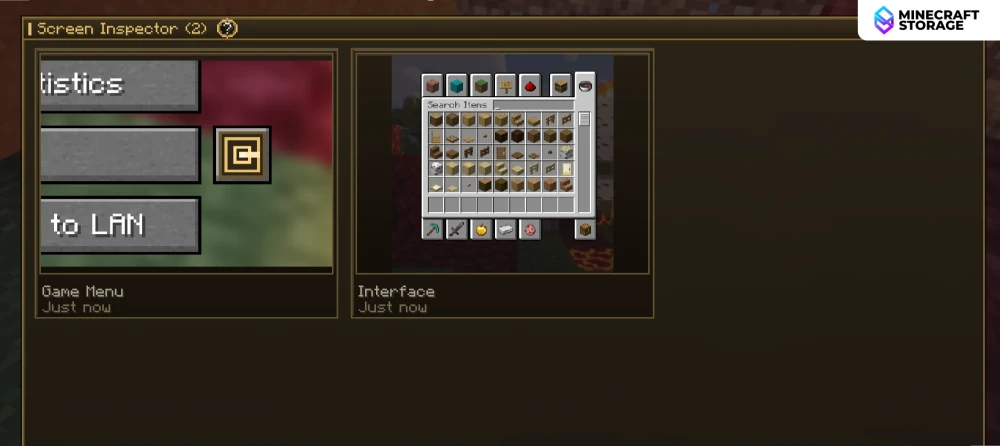
All your captures are saved automatically and viewable in a gallery, labeled by type and timestamp. This makes it simple to revisit past screenshots like menus or inventory interfaces.
Settings
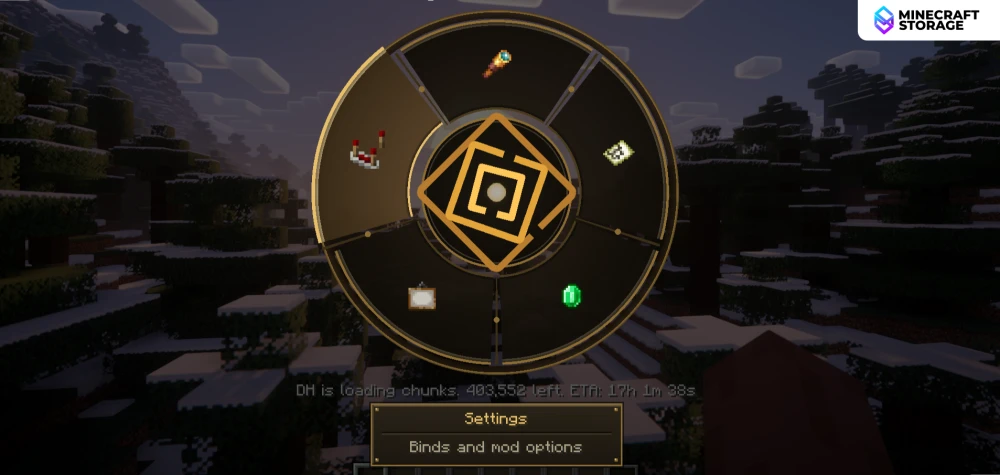
All keybinds are configured inside Panoptic's own Settings menu rather than Minecraft's standard controls. From here you can set shortcuts for actions like Smart Screenshot, Capture Target, and opening each individual Inspector.
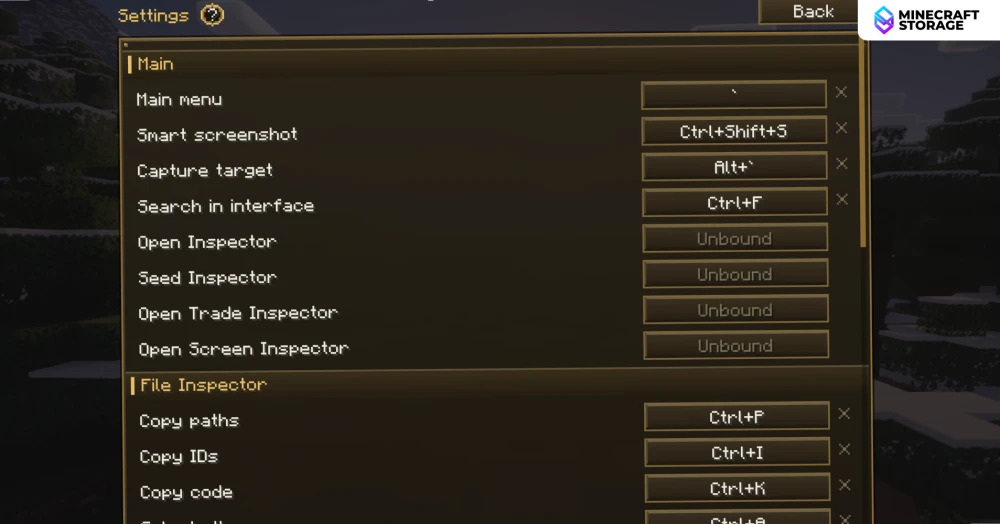
All keybinds are configured inside Panoptic's own Settings menu rather than Minecraft's standard controls. From here you can set shortcuts for actions like Smart Screenshot, Capture Target, and opening each individual Inspector.
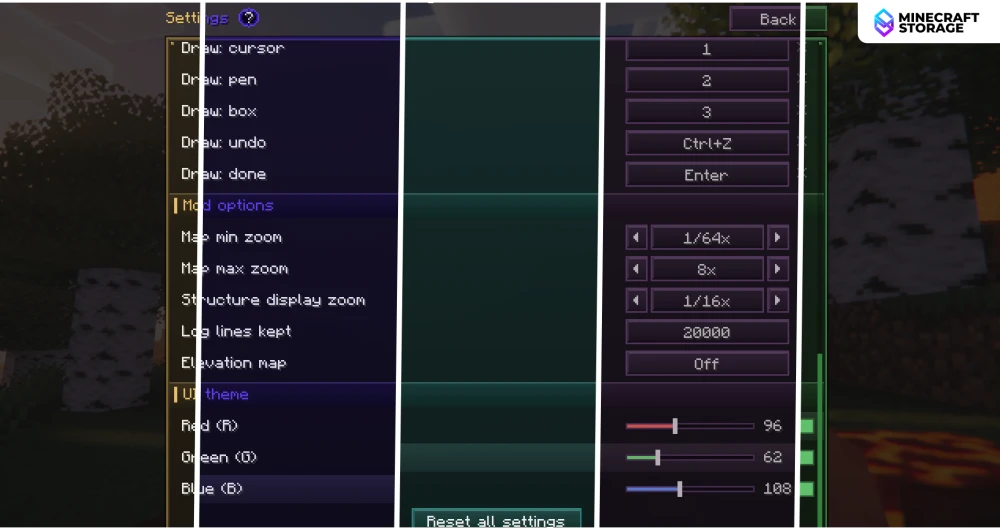
Panoptic lets you customize the overall UI theme directly from the Settings menu, so you're not stuck with a single fixed color scheme. Switching themes also updates the main menu button style, keeping the mod's look consistent across every interface.
Conclusion
Panoptic brings together everything a modpack creator, server admin, or curious player needs to understand their Minecraft instance, all in one lightweight, client-side package. From inspecting raw NBT data and generating seed maps to capturing annotated screenshots and spawning villagers with every trade unlocked, its toolkit covers debugging and exploration in equal measure. With customizable keybinds, a configurable GUI theme, and virtually no performance impact even on massive modpacks, Panoptic is easy to fit into any setup. Whether you're troubleshooting a broken structure or just want to see what's really inside your world, this mod puts that information right at your fingertips.
