

Not rated yet
Creators and Publishers

Andrei De Stefani
PublisherAdditional Links
You may find some useful information by following these links

https://www.curseforge.com/minecraft/mc-mods/effortless-building
Share this post


Effortless Building Mod
Tired of placing around hundreds of thousands of blocks by hand to finish that dream build of yours? Install this mod to make your life a lot easier.
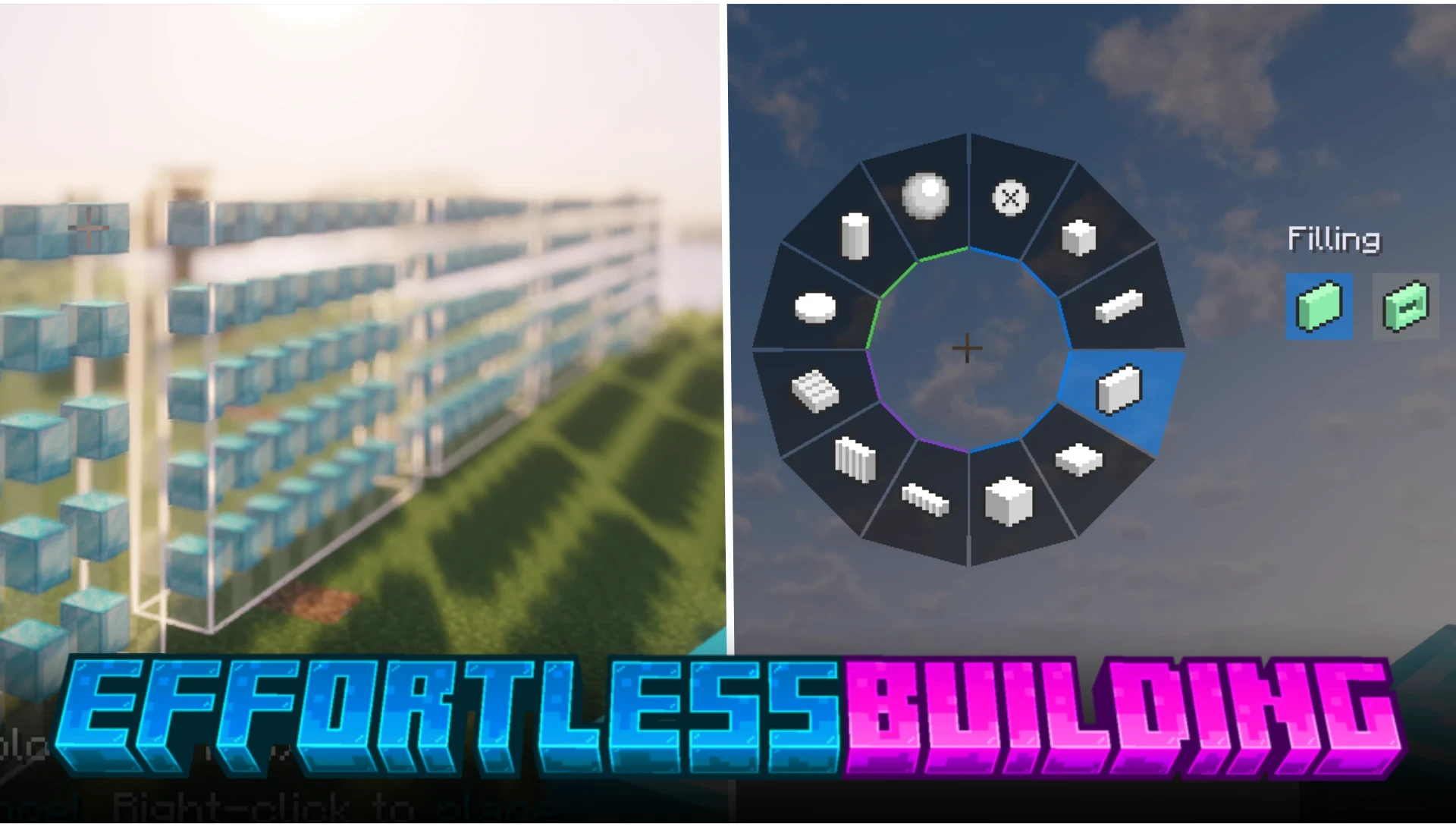

Welcome to the guide of the Effortless Building mod. In this section of the article, we will cover all the information you need to start using this mod. This guide covers all the features of this mod in detail.
Getting Started
The Menu
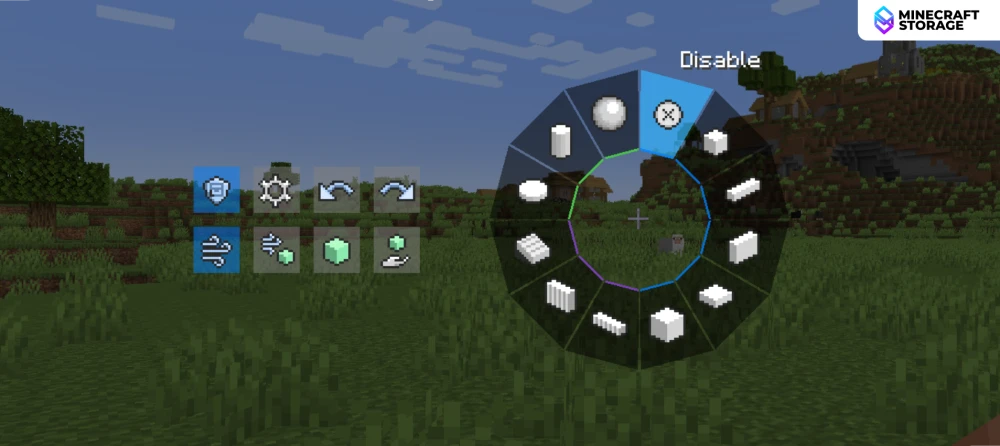
The mod comes with a custom menu screen that gives you access to thew various different tools introduced by the mod. Simply press and hold the left-alt key to open the menu. You can then use your mouse cursor to click and select your required options.
The different shapes that can be built using the mod are given in the form of a wheel. Click on any shape of your choice to select it. Eight other button are given on the sides to access more features and toggle others. More information on these buttons are explained in later sections of this guide.
Modes of Operation
Single
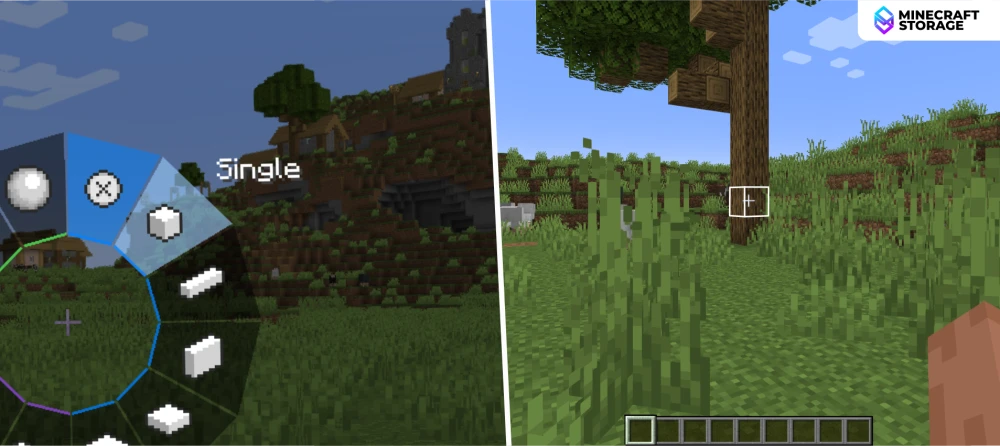
This mode enhances player controls to make it more comfortable to build. With this mode enabled, the reach of the player hands are increased significantly, allowing players to break/place blocks farther away than usual (upto 32 blocks). The block placing/breaking speeds are also increased.
Disable
All the features of the mod are disables. All game controls behave as in the vanilla game. This is the first option given on the wheel in the menu. This option can be seen selected in the above image.
Undo and Redo
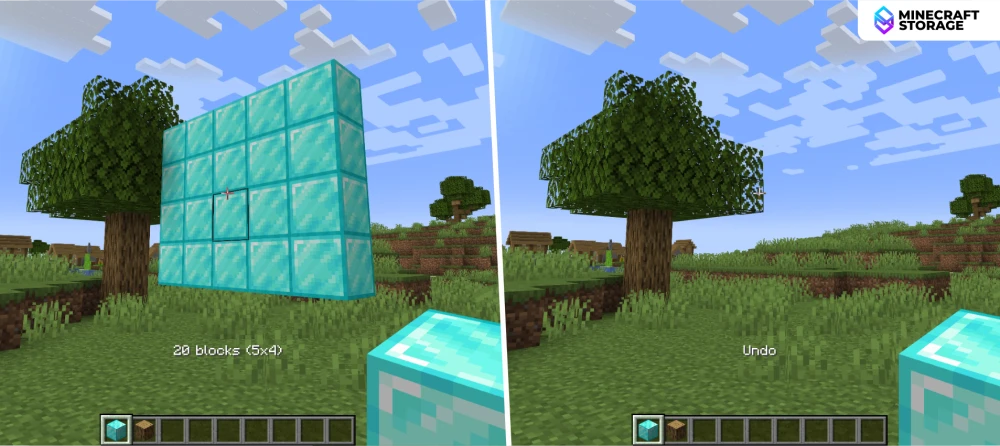
Any action performed using the mod can be undone and redone. Accidentally placed a large chunk of blocks, press "ctrl+z" to undo the action. Want the blocks removed by "undo" to be placed again, press "ctrl+y" to redo the undone action.
Breaking Blocks
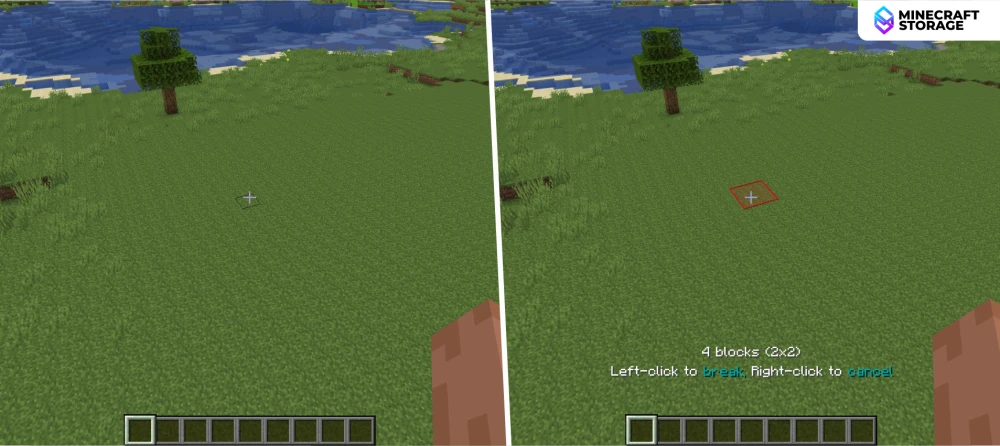
While in any of the building modes that we will discuss below, you can break/remove blocks in the same way you place them. Left-click on a block to select an end-point. This block will be highlighted in red color.
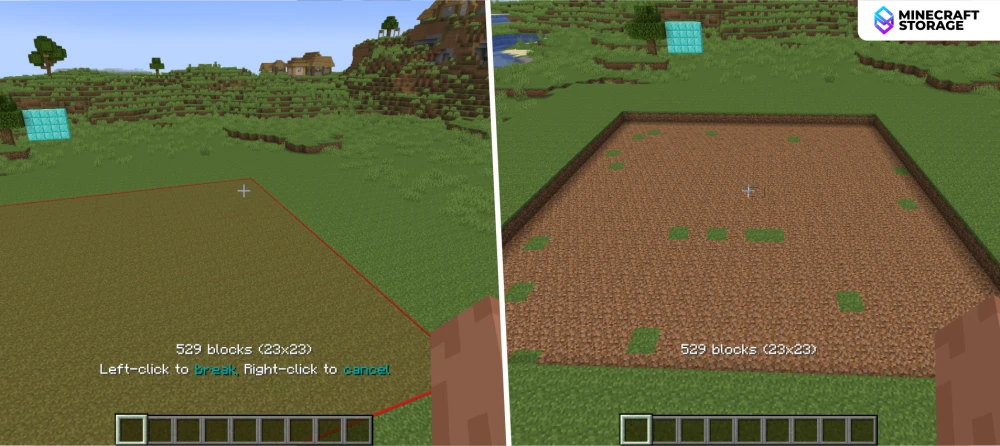
Move to another end and left-click to select the second end-point. As the left-click is performed, the blocks enclosed by the red bounding box will all be destroyed. Let us now explore the core building modes introduces by this mod.
Core Building Modes
Line Tool
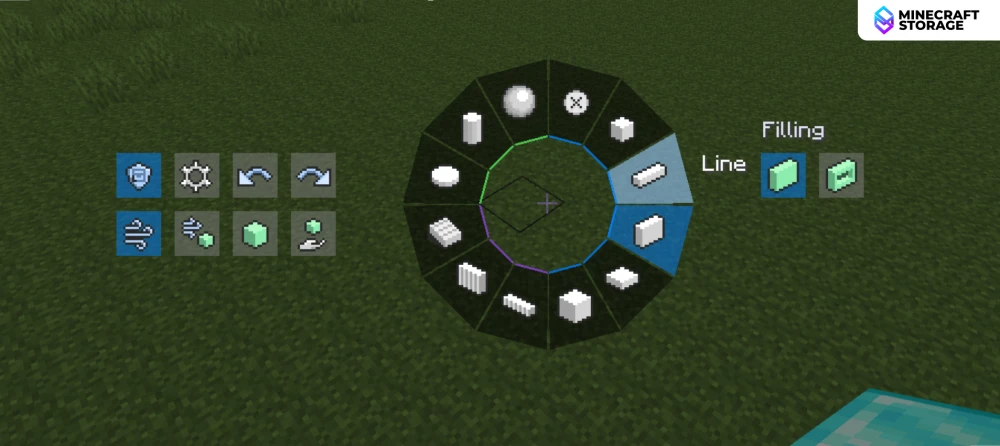
Open the menu and right-click on line tool to select it.
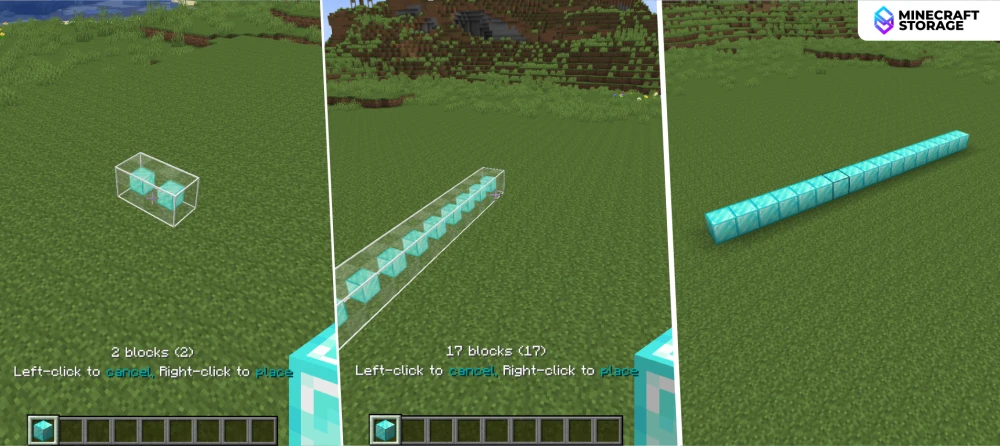
First, you need to select a block to build the line with. Hold the required block in the player's main-hand. Right-click somewhere to select the first end-point of the line. Right-click at another point to set the second end-point. When done correctly, a line must appear as soon as the second end-point is placed.
Wall and Floor
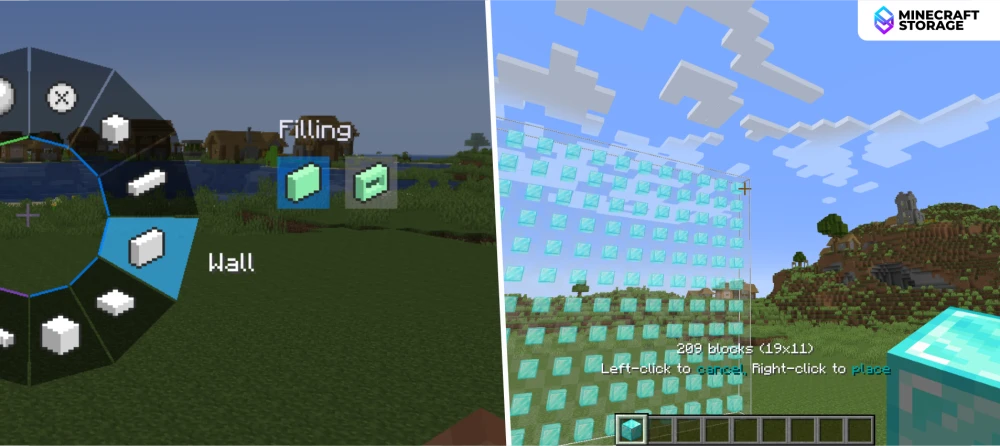
Below the line tool, the next two tools are the wall tool and the floor tool. These are used to build one-block thick walls and floors. First, lets build a wall. The process is very similar to how the line tool is used - place two end-points. In this case, the end-points represent two opposite ends of a rectangle.
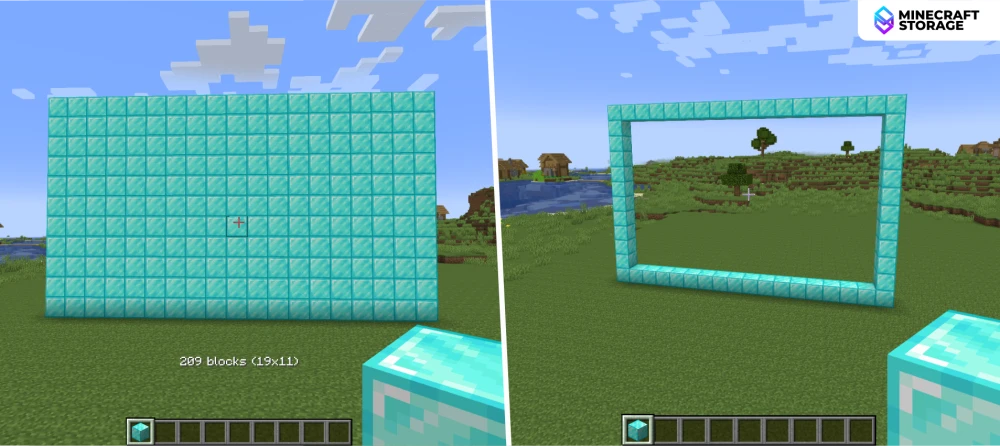
Beside the tool selection wheel in the menu, you will notice two buttons to select the filling of the built shape. Before building, select the one that you need. The filled mode places blocks in all the block spaces in between the selected end-points. The hollow mode places blocks only at the edges.
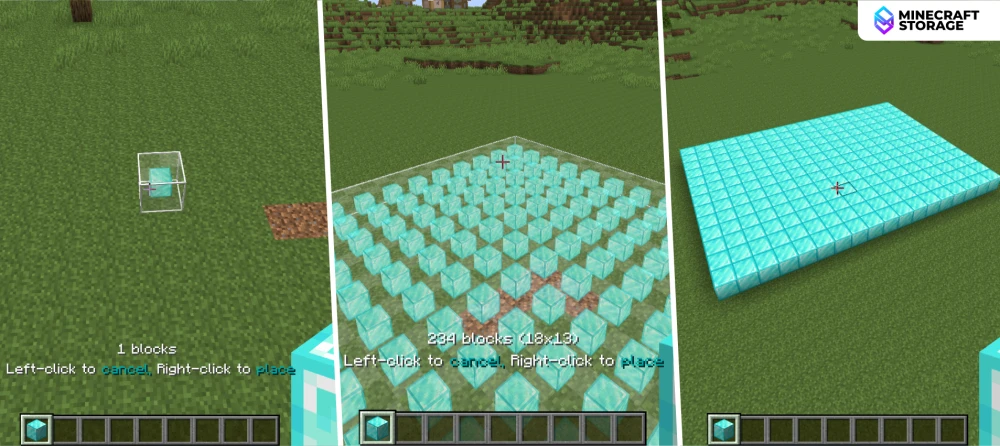
The steps to build a filled/hollow floor are exactly the same. The only difference is that the end-points must be selected in a horizontal place in the case of a floor.
Cube Tool
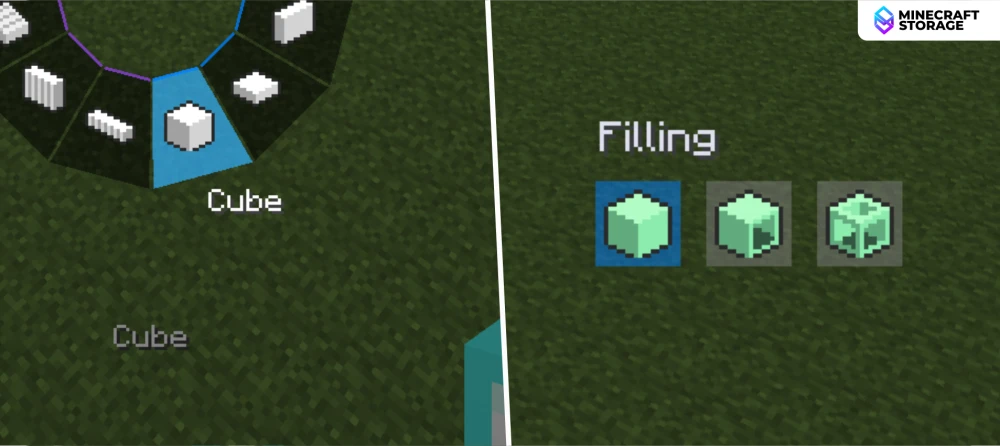
As suggested by the name, this tool is used to build cubes. The building steps for this shape require certain additional steps compared to the ones above, because the cube is three-dimensional.
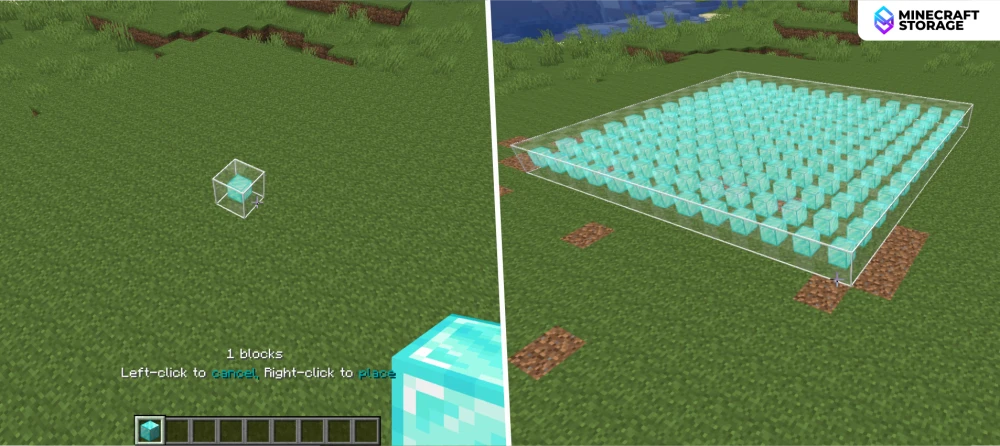
With the cube tool selected, place two end-points for a base square. You will notice that, even after placing the second end-point, the shape is not placed.
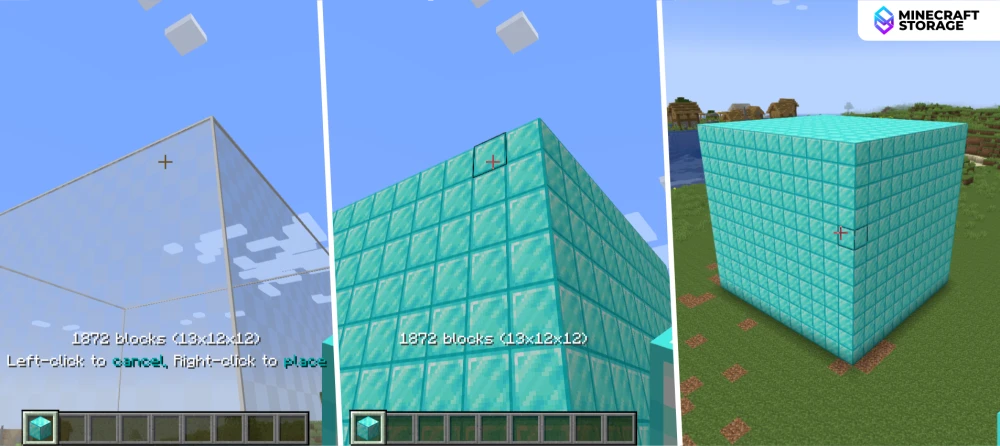
This is because, you need to look up/down to adjust the height of the cube. Once the required height is set, right-click to finalize and place the cube. The cube tool has three filling modes - hollow with faces, hollow with only edges and completely filled.
Diagonal Lines
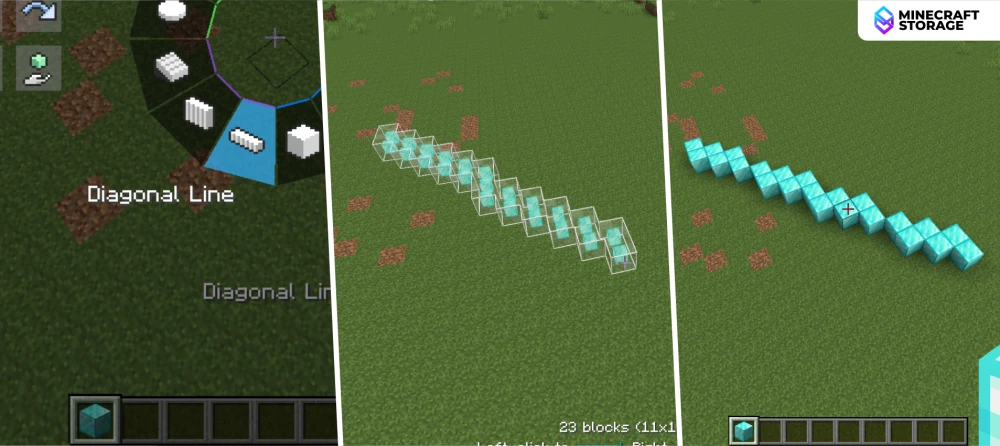
Very similar to the line tool in terms of usage. The only difference being that the diagonal tool allows you to place lines that are not completely straight.
Diagonal Walls
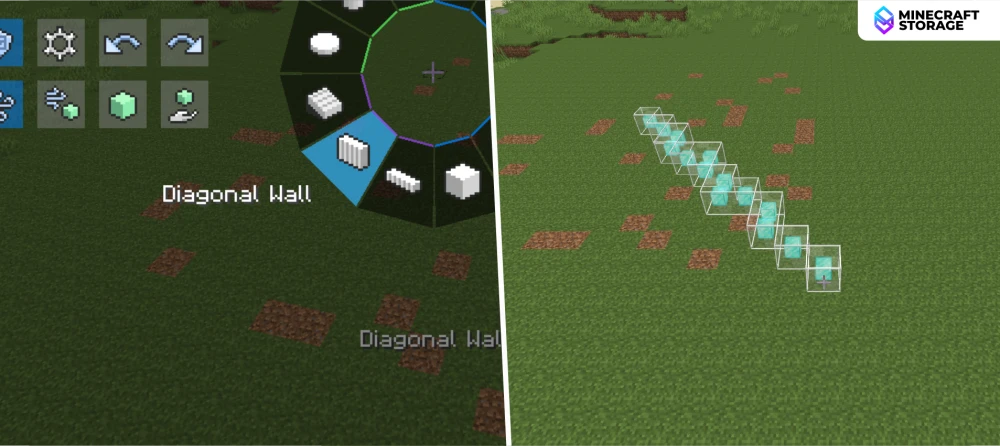
The usage is very similar to that of a cube. Place a base line shape and set it by right-clicking.
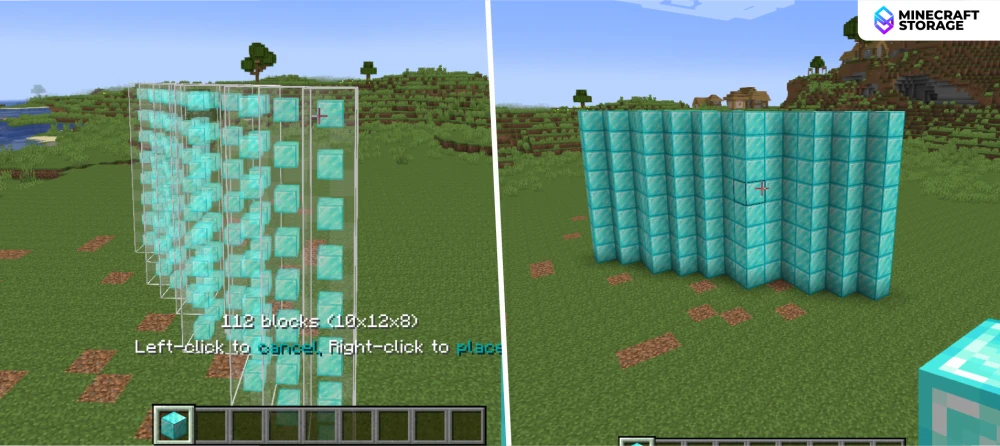
Once the base is set, adjust the vertical height and right-click to build the diagonal wall.
Circles and Cylinders
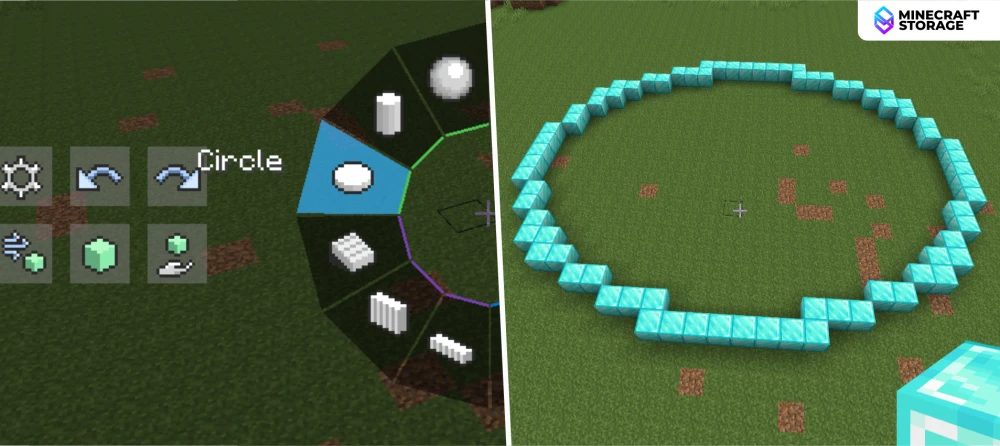
With the circle tool selected select a block as the mid-point. Look far away to adjust the radius of the circle. Like with other shapes, right-click to finalize and place the circle.
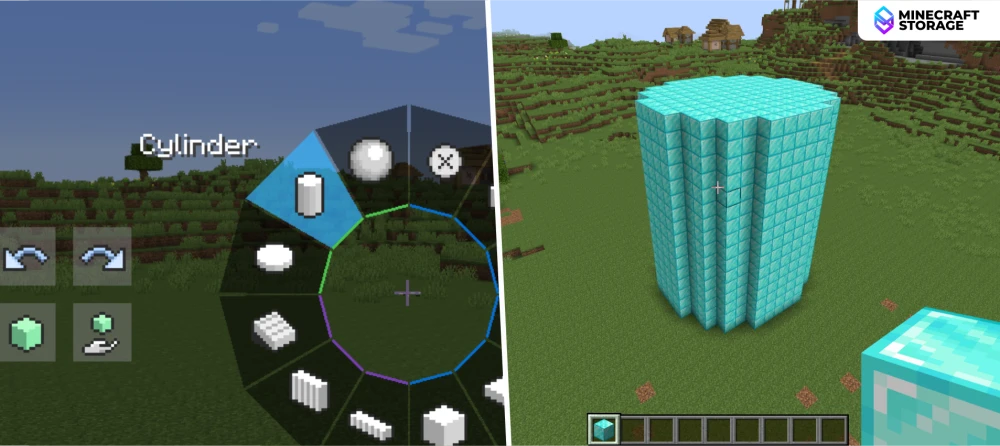
To build a cylinder, the same logic of building a cube is used. Set a base circle and adjust the vertical height.
Spheres
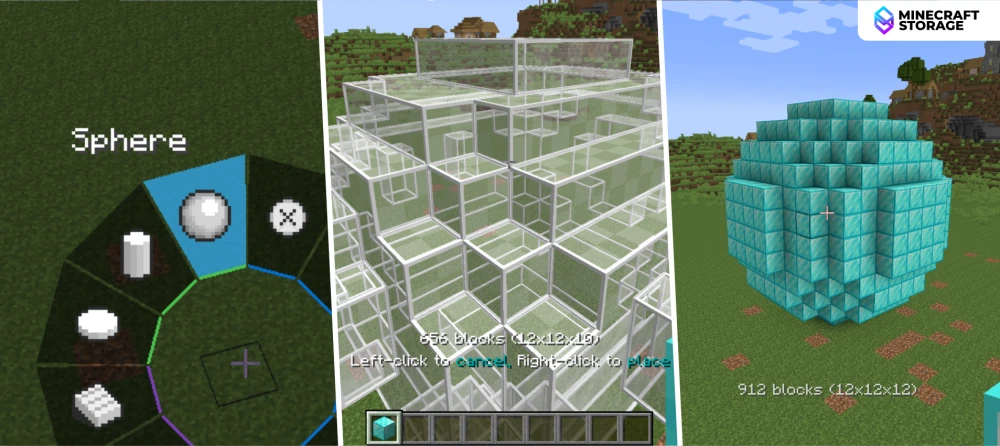
Set a base circle and make it three-dimensional by adjusting vertically. Right-click to finalize the shape. Shape tools like circles, cylinders and spheres allows you to set the fill type - hollow, filled, etc.
The Randomizer Bag
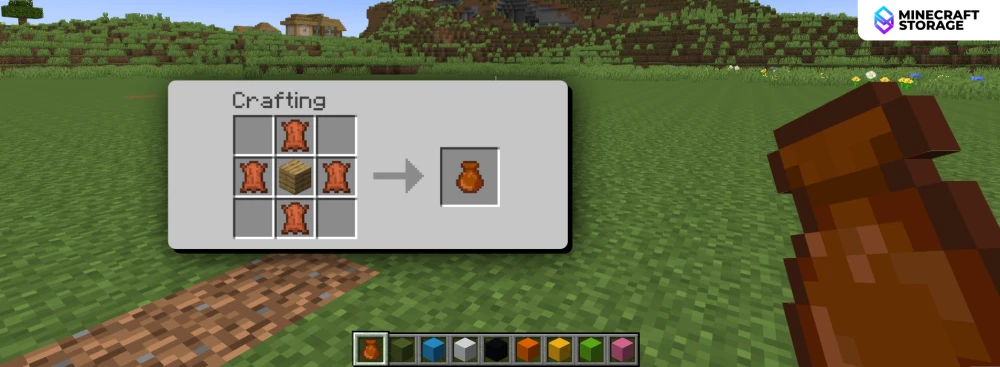
Using the recipe given above, players can craft an item called the "randomizer bag". This bag is used to place blocks in a randomized manner.
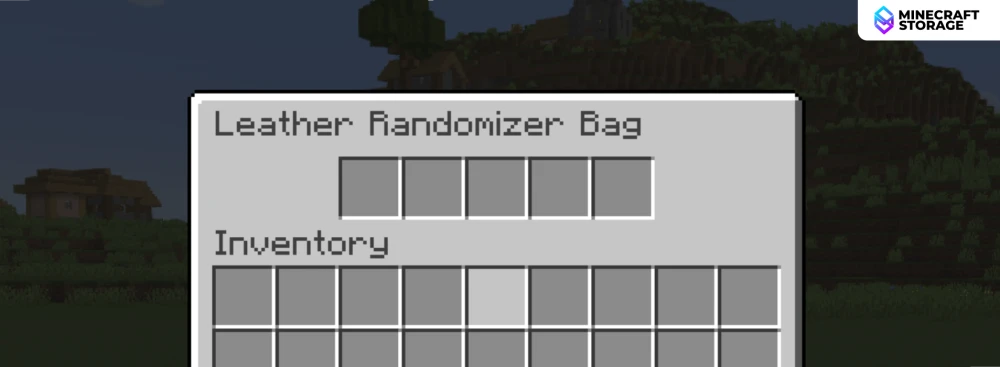
With the bag in hand, crouch + right-click to open its inventory. You can place up to five different blocks in the bag.
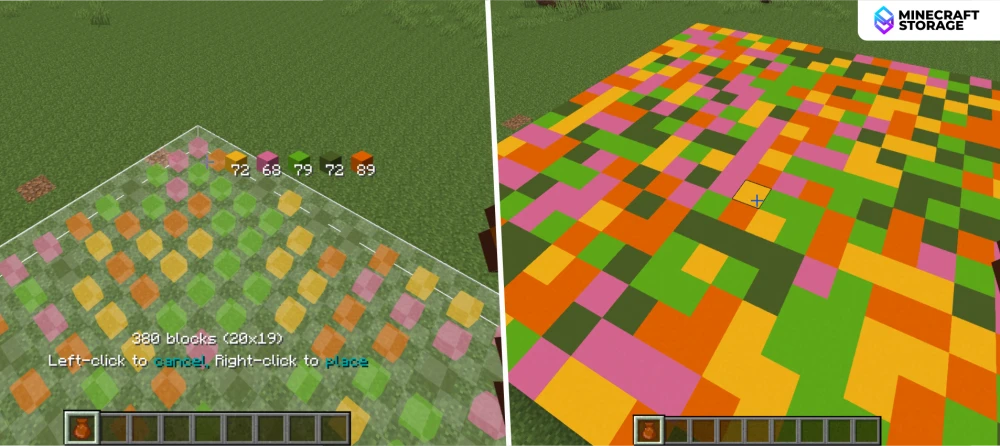
Hold the bag in main hand and place any shape that you want, the shape will be placed with the items in the bag placed in a randomized order.
Modifiers
Array
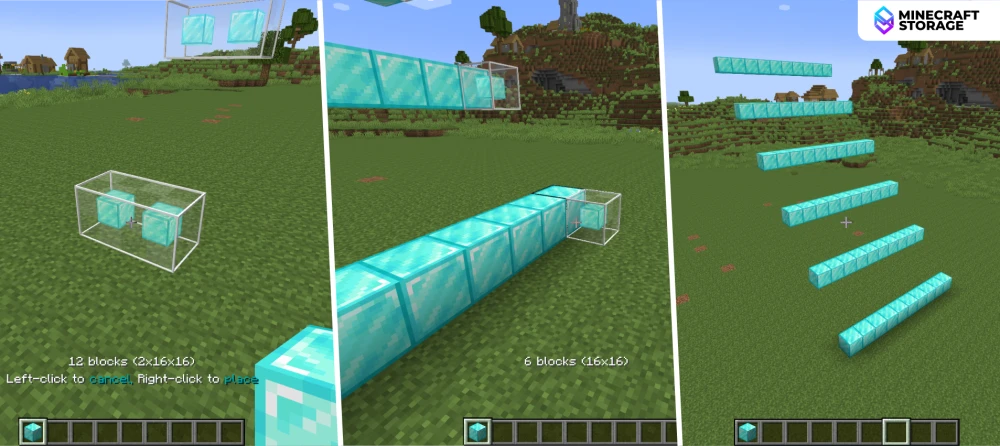
Array is a modifier that helps you build the same shape multiple times over with a configurable off-set and distance. This is extremely helpful when build large repetitive structures.
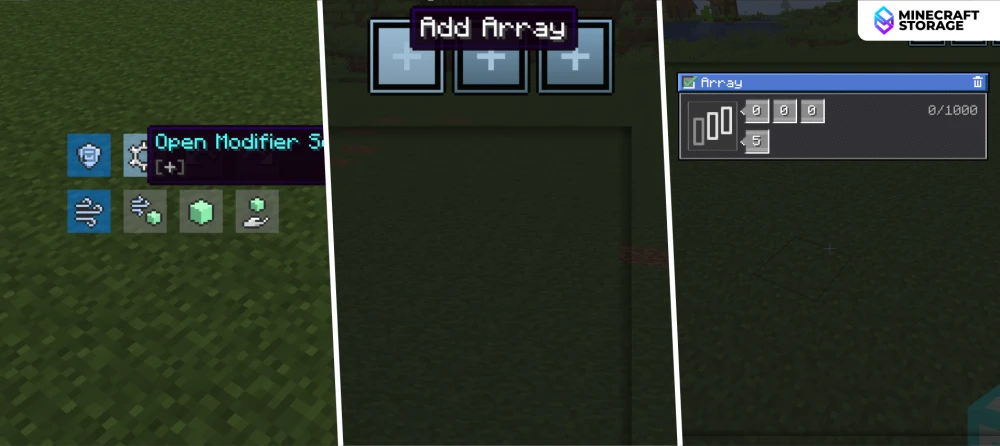
In the menu, a button with a gear icon in provided. Open it to access the modifier settings. From here select the first "+" icon to add an array modifier. When the "+" icon if clicked, a box for a new array modifier is created. Here, you can adjust the off-set across the three different axes and the number of repetitions.
Mirror
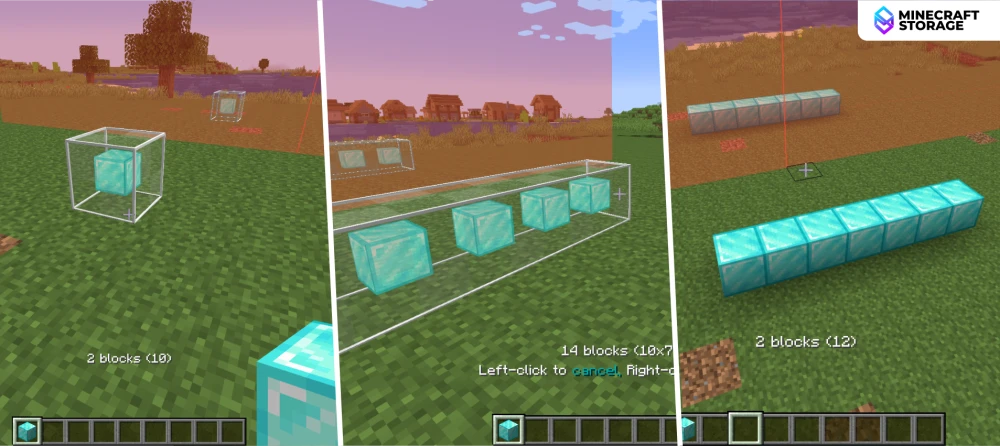
The mirror modifier helps build symmetric structures. Suppose you are building a large cathedral that is symmetric across a central plane. You can use this modifier to double the building speed and to ensure accurate symmetry.
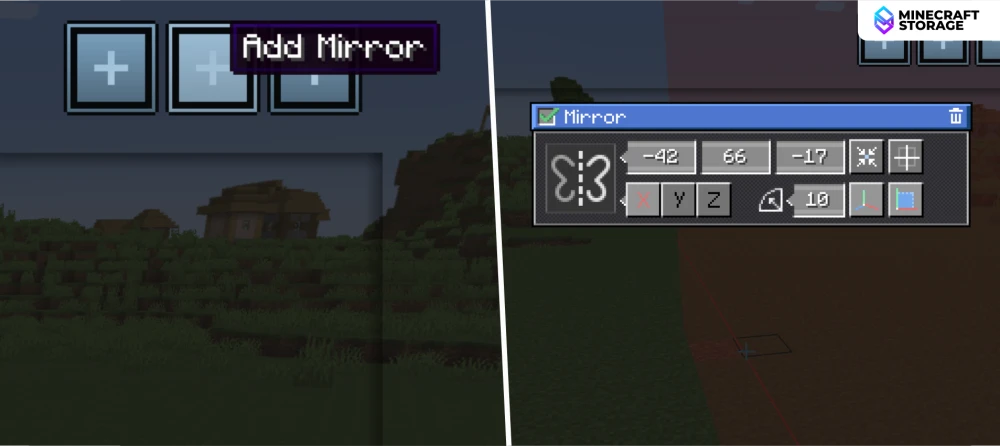
The modifier can be created and its settings can be accessed by clicking on the second "+" icon next to the array creation '+" icon we discussed earlier.
Radial Mirror
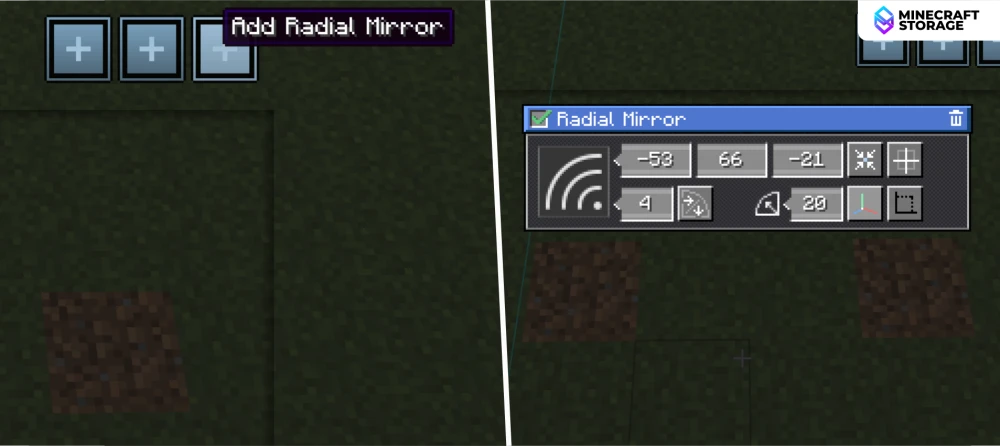
The third and the final "+" icon allows you to create radial modifiers. This modifier allows you to repeat your build in a circular pattern around a center point, which is excellent for castle turrets or round rooms.
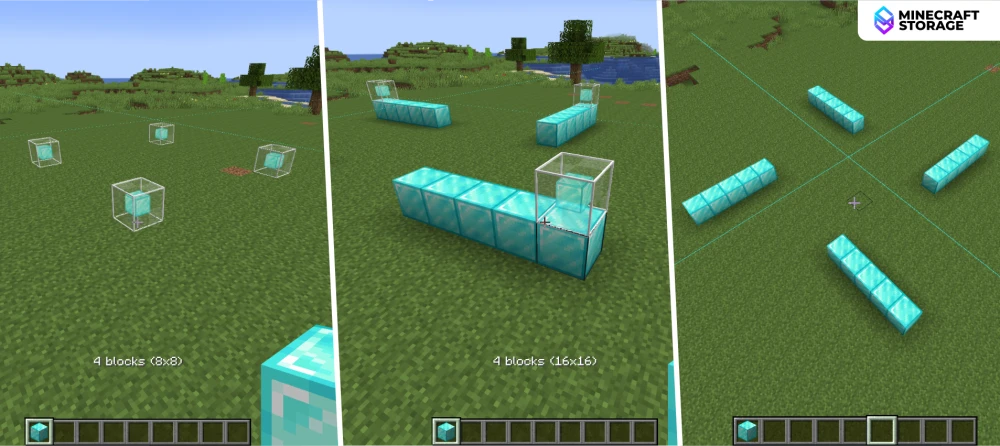
As you can see the four-way radial mirror repeats my build across four quadrants. Note that the "radial mirror" modifier is different from the "mirror modifier". Radial mirror modifier rotates your build, whereas the mirror modifier flips it 180 degrees.
Precise Replacement Settings
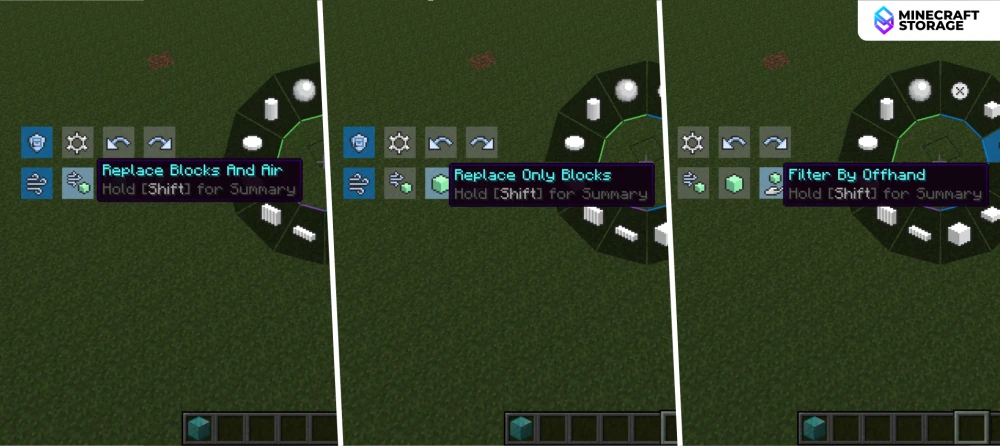
These are some additional settings found in the menu screen.
Data Protection: Prevents replacing blocks that hold data (chests, furnaces, hoppers).
Replace Air Only: Only places blocks where there is nothing currently.
Match Block: Only replaces blocks that match what you are holding in your off-hand.
Conclusion
This guide explain every feature of the Effortless Building in detail. Any beginner installing the mod for the first time can utilize this guide to learn about and use this mod efficiently. Download the mod using the links provided in the DOWNLOADS tab.
